






-
30/05/2019
Pipeline Charts are useful to analyze visually the % of Conversion for each phase of your Sales, Marketing process
Let’s start creating the Pipeline Chart in Tableau using this DataSet, where we can see the KPI Value per each phase of a different Campaigns. We have to add a column called Link with value 1.

We also are going to use a template for densification in Tableau (create virtual marks of data)
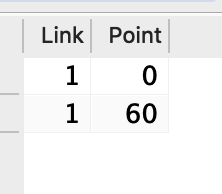
Then we Join the DataSet and the template:

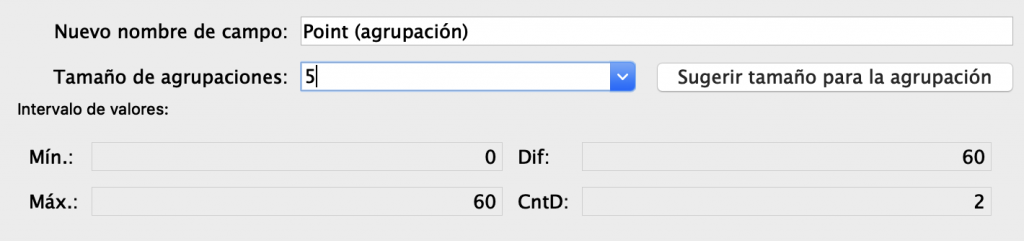
Click on new Sheet and start creating the Bin and using these dimensions:

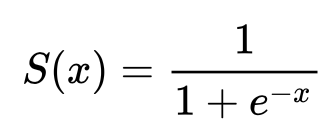
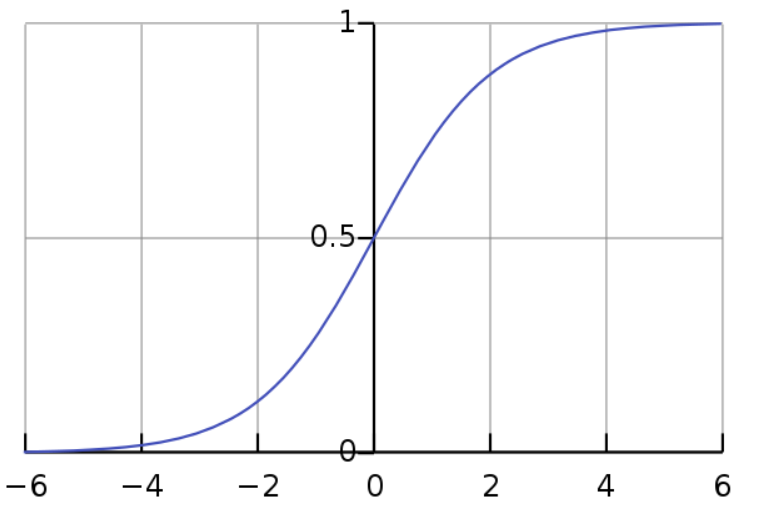
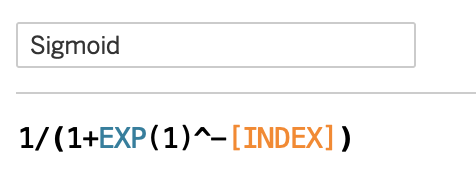
In Order to create a smooth line between 2 Values of each Phase, we will need the function Sigmoid:
Create a new Calculated Field INDEX, computed using the Bin
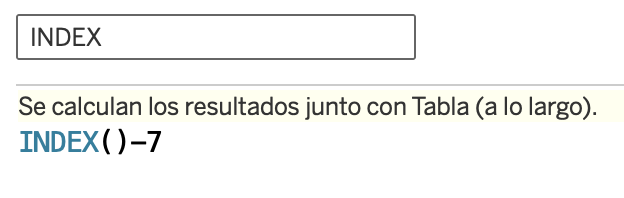
Create the Calculated Field Sigmoid, according to the previous Formula, computed using the bin:
Drag AVG(Value) to the View and create a new Calculated Field in order to get the same Value for next Phase, computing using then bin
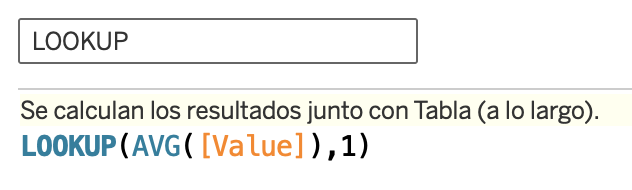
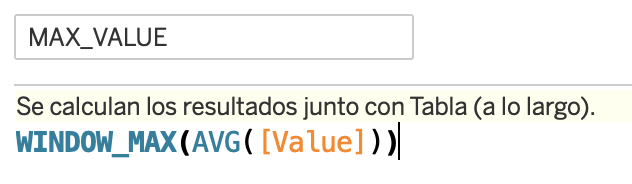
Create 2 new Calculated Field to get the Max of the AVG(Value) and LOOKUP, computed using the Bin
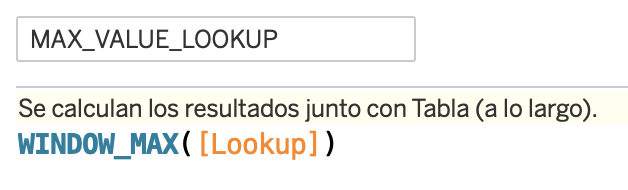
And finally create the Calculate Field CURVA to have all the values of the Line:

Before building the View, check the Table Calculations:
- INDEX, SIGMOID, LOOKUP computed using the bin
- MAX_VALUE, MAX_VALUE_LOOKUP and CURVA computed using the bin
At this point you should have a Table like this:
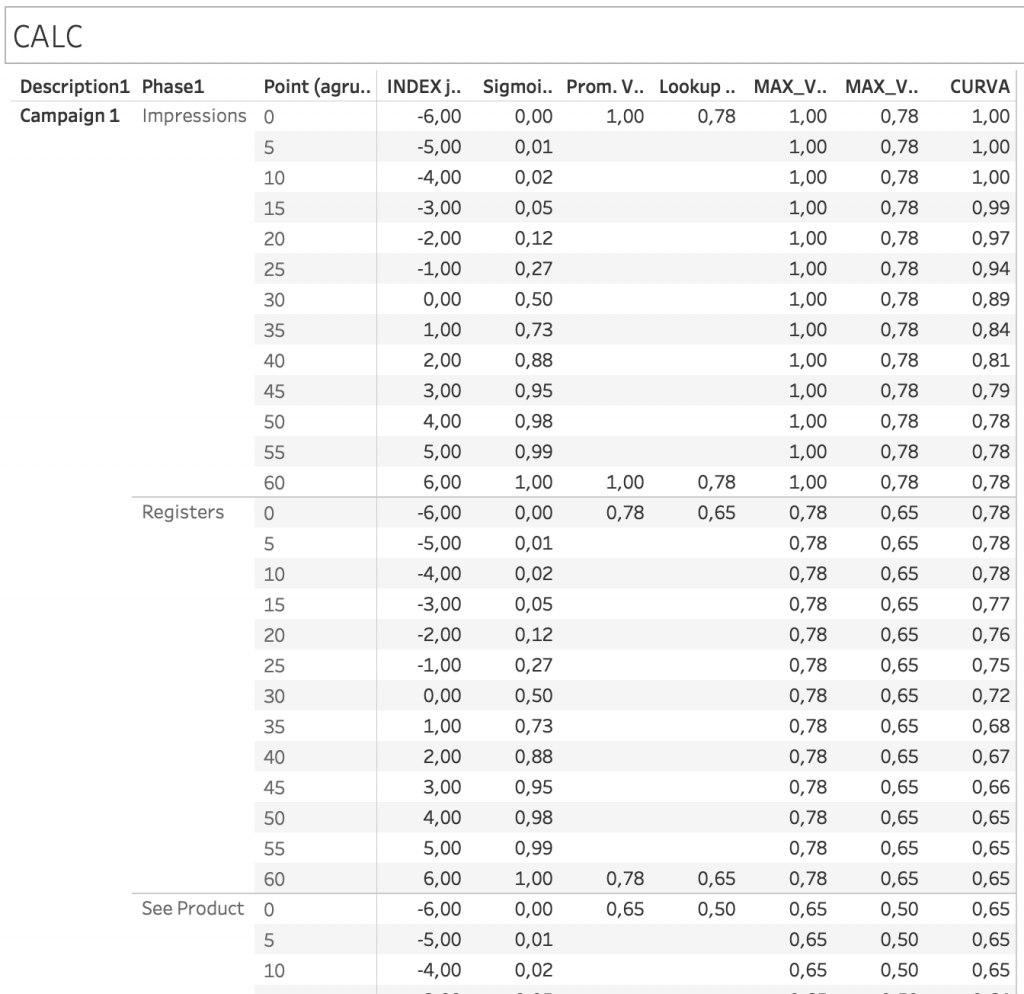
Duplicate the Sheet and create the View and drag:
- Campaign to Columns
- Phase to Rows
- CURVA to Columns
- INDEX to Rows
- LOOKUP, MAX_VALUE Y MAX_VALUE_LOOKUP to Detail
- AVG(Value) to Detail
- Agrupación y Phase to Color
- Type of Mark Line
Then duplicate the Field CURVA, insert – and select Dual Axis:

Finally format as you prefer!
That’s all and Cheers!